
Install OpenClaw
Install your ai assistant in 45 minutes.
Step-by-step video + 24/7 AI support bot
Works on your Mac - Not in the cloud
⟩ The Problem
You've heard about OpenClaw.You want an AI agent.
But the setup is... confusing.- Terminal commands
- API keys
- Config files
- "Wait, what's Docker?"
⟩ The Solution
We made it simple.- Watch a 45-min video walkthrough
- Follow along step-by-step
- Get stuck? Text our support bot (24/7)
- Your agent is running in 45 minsNo coding. No confusion. Just works.
45 minute set up vs endless frustration
Install OpenClaw
Without Getting Stuck
Full step-by-step video course
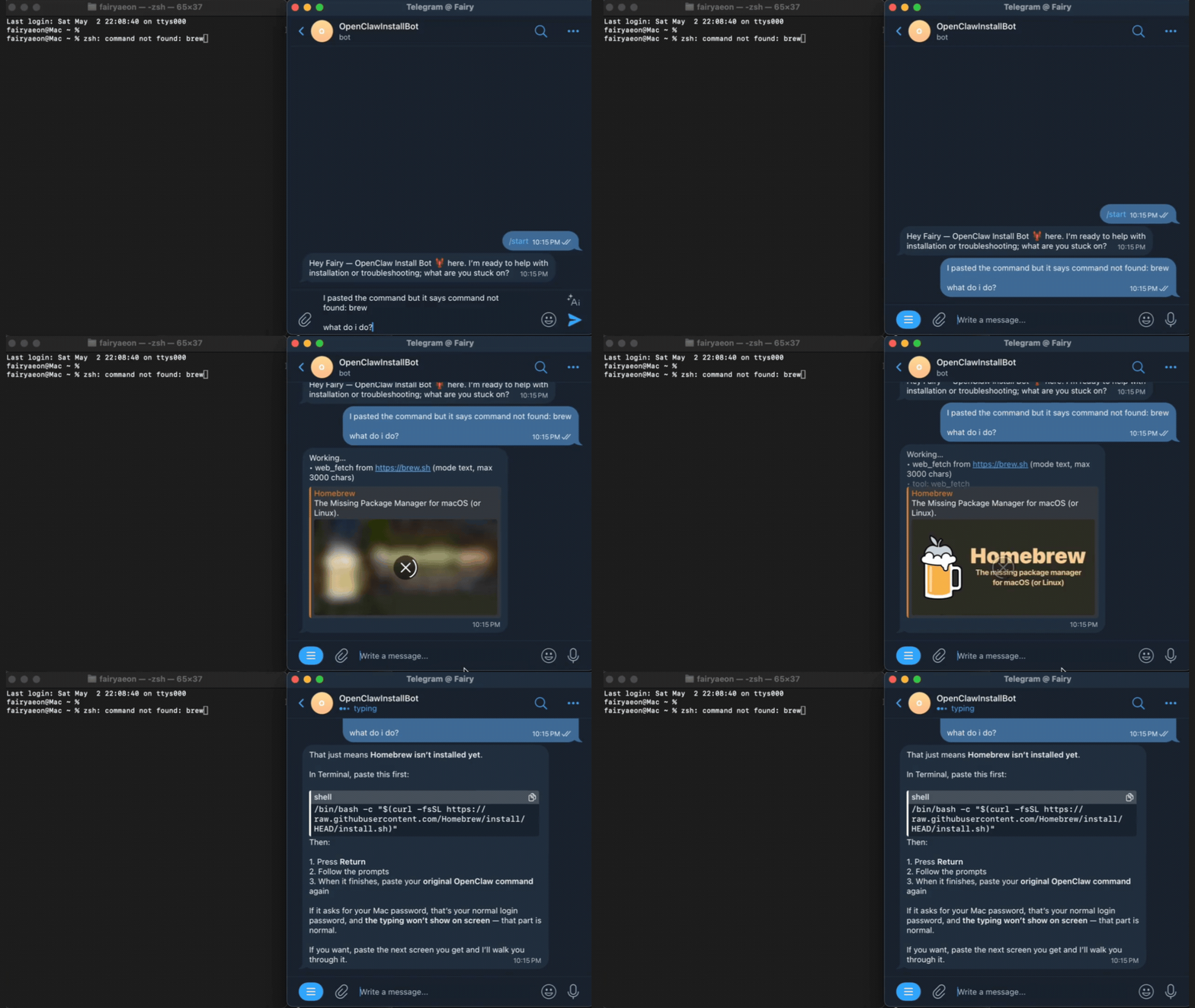
+ 24/7 install bot supportSee the support bot in action 👇
Command not found? No problem. Get instant answers so you can finish your install in under 45 minutes.
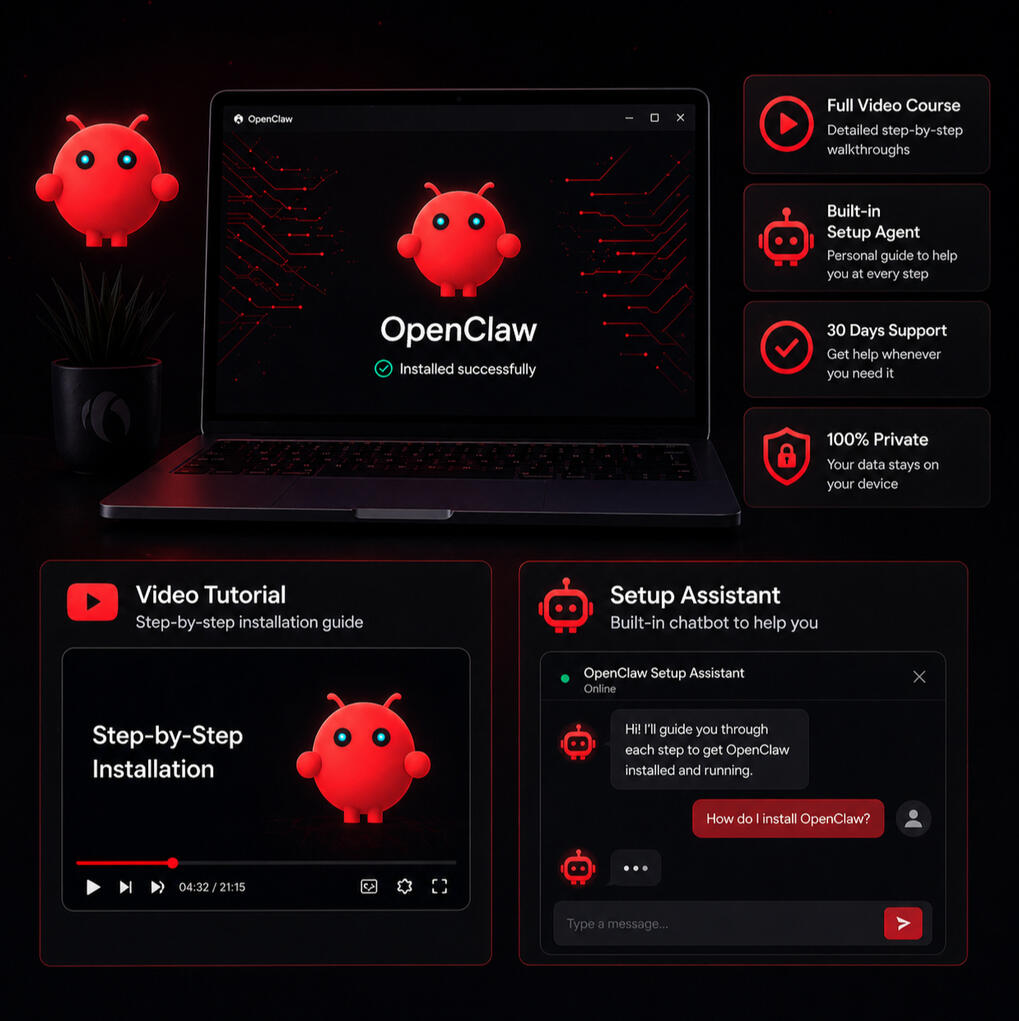
⟩ Follow the
video
Step-by-step walkthrough.
⟩ Ask the bot
anytime
Real-time help to get un-stuck.
⟩ Get it running fast
Have your ai assistant set up in 45 minutes.
⟩ Why install on your computer vs the cloud?
Your Data. Your Control. Your Privacy.Unlike cloud services, when you run OpenClaw on your own computer:• Your data never leaves your device — no one else has access
• No monthly fees — pay once, own it forever
• Full privacy — your conversations, files, calendar stay yours
• Works offline — doesn't depend on someone else's servers
• Total customization — configure it exactly how you wantCloud = Convenient, but you're renting.
Local = Yours. Forever. Private.
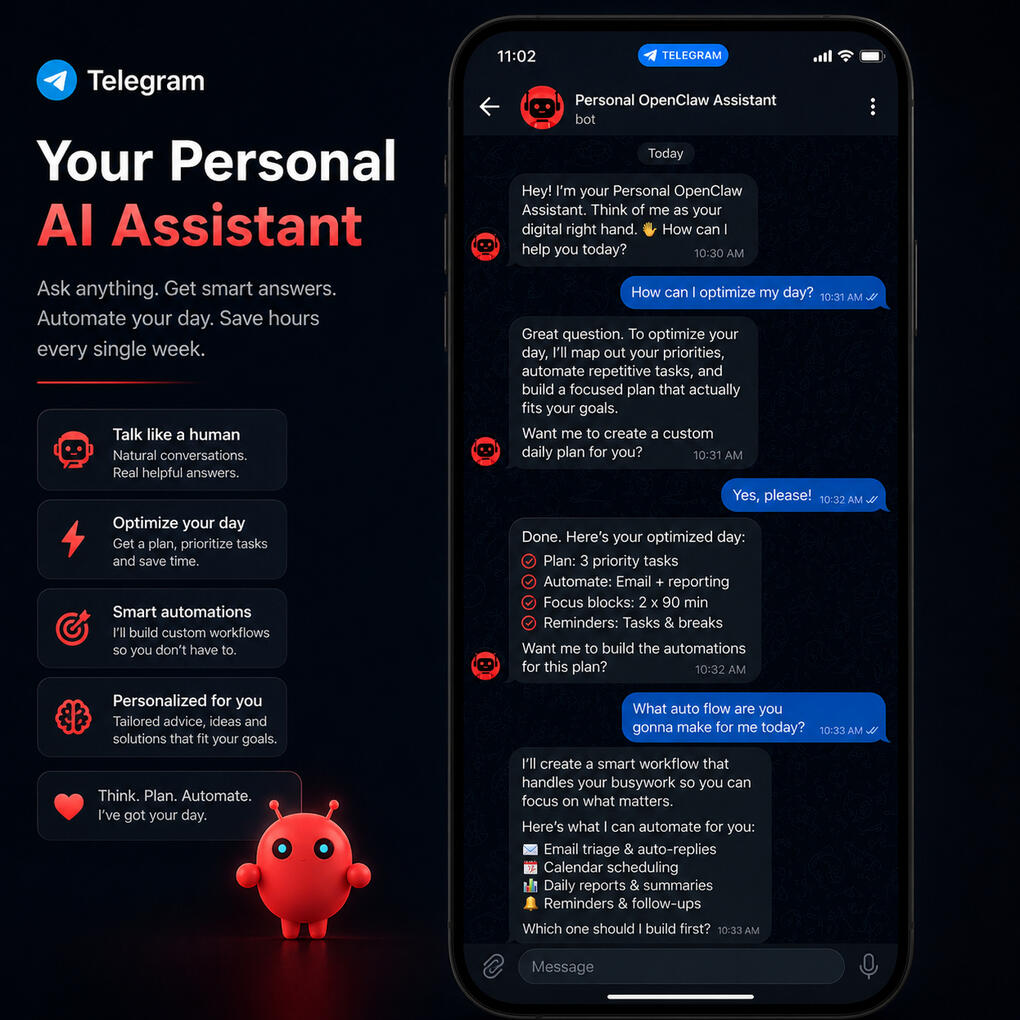
⟩ Runs from your computer, use your assistant from your phone
Your assistant doesn’t live in a dashboard.
It lives where you already are.Text it. Ask it. Delegate in seconds.
Once installed, message your AI assistant from:• Telegram (our recommended setup)
• WhatsApp
• iMessage
• Slack, Discord, Signal & moreNo logins. No tabs. No switching tools.
Just open your chat and say what you need.
⟩ What people are saying

@gordonkling
"I’m gonna be honest… I tried setting up OpenClaw like 3 times before this and gave up every single time.Something would always break and I had no clue what I did wrong.This is the first time it actually clicked.The video is super straightforward, walks you through everything. but the real game changer was the setup agent. It literally felt like having someone there with me like “ok do this next… nope not that, this.”I had it up and running way faster than I expected. Kinda wild honestly."

@janelleserice
"I’m definitely not what you’d call “tech savvy,” but I know how important it is to keep up, especially for my work. My son actually sent me ... I wasn’t so sure at first.But I have to say… this was surprisingly easy to follow.Everything is broken down in a way that makes sense, and I never felt rushed or overwhelmed. When I got stuck, I could pause, go back, and figure it out without feeling lost.What I appreciated most is that it didn’t assume I already knew anything. Now, I have it set up and working, and it’s already making a few parts of my day a lot easier.
Honestly, if I can do this, anyone can."
Questions?
Q: Do I need to be technical?
A: Nope. If you can follow a YouTube tutorial with step by step interactive text replies, you can do this.
Q: What if I get stuck?
A: Text our support bot 24/7. It'll walk you through it.
Q: How long does setup take?
A: 1-2 hours following the video. Most people finish same-day.
Q: Should I install OpenClaw on my main computer?
A: We strongly recommend installing it on an older, spare computer or a dedicated device (like a Mac Mini or an old laptop) rather than your daily driver.Here is why:The Security Sandbox: AI agents are incredibly powerful—they can read files, write code, and browse the web. If your AI ever makes a mistake or encounters a malicious website, keeping it on a separate device ensures your primary banking, personal photos, and sensitive work files are 100% isolated and safe.
Always-On Performance: To be a true assistant, OpenClaw needs to be running 24/7 so it can answer you anytime. An old laptop plugged into a corner of your room makes the perfect "always-on" AI server, without draining your main laptop's battery or slowing down your daily work.
Q: Can I install this on an old device?
A: Yes! We actually recommend this. If you have an old Mac (Big Sur 11.0+), Windows PC (Windows 10+), or even an old Android phone (Android 10+ via Termux), you can repurpose it to run OpenClaw 24/7. Our video shows all three methods.
Q: Can I use my phone?
A: OpenClaw runs on your computer (Mac, Windows, or Linux). Once set up, you message it from your phone via Telegram or WhatsApp — just like texting an assistant.
Q: What are the minimum requirements?
A: Mac: macOS Big Sur (11.0) or newer | Windows: Windows 10 or newer | Linux: Ubuntu 20.04+ or equivalent | Android: Android 10+ with Termux app
Q: Will this work on my old laptop?
A: If it runs macOS Big Sur+, Windows 10+, or a recent Linux, yes! Older than that might struggle. Check your OS version first.
Q: How much does OpenClaw cost?
A: Our installation guide + support bot is a one-time payment of $97, which includes step-by-step setup instructions and help getting everything connected properly.OpenClaw itself has its own usage costs, billed directly by the AI provider you connect (we recommend Anthropic).
Q: Buying a computer for your setup?
A: If you’ll have a permanent desk setup, we recommend the Mac mini — it’s one of the best values for performance, reliability, and price.If you need portability, go with a MacBook Pro (14-inch or 16-inch) — the built-in cooling fan makes it better suited for sustained workloads than fanless models.
Q: Is there a refund policy?
A: Yes. 7 days, no questions asked.
⟩ Message us
© 2026 OpenClawInstall.tech
Not affiliated with OpenClaw.
OpenClaw Installation Course + AI Support Terms
Last updated: April 30, 2026By purchasing this product, you agree to the terms below.
⟩ What's included
Your purchase includes access to the OpenClaw Installation Course, a self-guided digital setup video, plus limited AI setup support through our Telegram support bot.The AI support bot is intended to help with OpenClaw installation questions, setup errors, configuration issues, and troubleshooting directly related to the course.
⟩ AI Support Access
AI setup support is included for 30 days after purchase.AI support is limited to OpenClaw installation troubleshooting only. It does not include unrelated coding help, general technical support, business advice, custom development, or support for other tools or projects.We may apply reasonable usage limits, including message limits, token limits, rate limits, or abuse-prevention limits, to protect service quality and prevent misuse.
⟩ No human support included
This purchase does not include human support, live calls, custom installation help, managed setup, or done-for-you services.The course and AI support bot are provided as self-guided educational and troubleshooting resources.
⟩ Sensitive Information
Do not submit passwords, API keys, private keys, seed phrases, server credentials, billing information, or other sensitive or confidential information to the AI support bot.You are responsible for reviewing anything you paste into the bot and removing private or sensitive data before sending it.
⟩ Refund Policy
We offer a 7-day money back guarantee.Refund requests must be submitted within 7 days of purchase through Gumroad or the purchase receipt.If a refund is issued, access to the course materials and AI support may be revoked.Refunds may be denied in cases of abuse, excessive use of AI support, violation of these terms, fraud, duplicate refund requests, chargeback abuse, or attempts to access or copy the product in bad faith.
⟩ Digital Product Access
This is a digital product. Access may be provided through Gumroad, a course page, video link, download page, Telegram bot, or other delivery method we choose.You may not share, resell, redistribute, publish, upload, sublicense, or give others access to the course materials, video, bot access, prompts, private links, or related resources.Your purchase is for your own individual use unless we agree otherwise in writing.
⟩ AI Limitations
The AI support bot may make mistakes or provide incomplete information. You are responsible for reviewing instructions before running commands, changing configurations, installing software, or taking other technical actions.We are not responsible for damage, data loss, downtime, account issues, service interruptions, or other problems caused by your installation choices, system environment, third-party services, or use of AI-generated guidance.
⟩ Third-Party Tools
OpenClaw, Telegram, Gumroad, hosting providers, operating systems, package managers, APIs, and other third-party tools or services may change, break, become unavailable, or require their own accounts, fees, or terms.We do not control third-party tools and cannot guarantee that every environment or configuration will work.
⟩ Taxes
Sales tax, VAT, GST, or other applicable transaction taxes may be calculated and collected by Gumroad based on the buyer’s location and applicable rules.
⟩ Changes
We may update these terms from time to time. The version posted at the time of purchase applies to your purchase unless a later version is required by law or platform policy.
How to Fix OpenClaw Daemon & Local Install Errors (Mac/Linux)
If you are trying to install OpenClaw locally to keep your data private, you already know how powerful it is. But getting the daemon running, fixing PATH errors, and configuring the gateway can quickly turn into a headache.
⟩ Skip the headache:
Stop scouring outdated Reddit threads. We built the ultimate OpenClaw Setup Kit. For just $97, you get our foolproof step-by-step video tutorial AND exclusive access to our specialized OpenClaw Setup Bot that instantly troubleshoots any terminal error you run into.
If you want to troubleshoot it yourself...
Here are the fixes for the three most common OpenClaw installation errors
⟩ Error 1: "command not found: openclaw"
You ran the install script, but when you type openclaw, your Mac or Linux terminal says the command doesn't exist.
The Fix: Open your terminal and paste this exact command to fix your PATH:
echo 'export PATH="$(npm prefix -g)/bin:$PATH"' >> ~/.zshrc && source ~/.zshrc
⟩ Error 2: The Gateway Daemon Won't Start
The Fix: Force-restart the gateway service:
openclaw gateway restart
⟩ Error 3: Telegram Bot Won't Connect
The Fix: Usually, this means the API token wasn't saved correctly.1. Go to @BotFather on Telegram and copy your API token.
2. Run: openclaw config edit
3. Paste the token, save, exit, and run openclaw gateway restart.Stop guessing. Get it right the first time.Trying to debug network rules and daemon logs isn't why you bought into AI.At OpenClawInstall.tech, we packaged everything you need into one $97 setup kit. You get crystal-clear video walkthroughs and 24/7 access to our specialized troubleshooting bot. If you hit an error, just ask the bot—it knows exactly how to fix it.